


Free Elementor widget
JYP Images Effects
Create layered image and text compositions with a configurable 3D parallax effect. Arrange content at different depths and let the layers respond to pointer movement.
This version includes the parallax effect. More visual effects are planned for future updates. The plugin is completely free to use, and all of its features will remain free.
Created by JYP - Just Your Plugin.
What you can create
Build depth with images
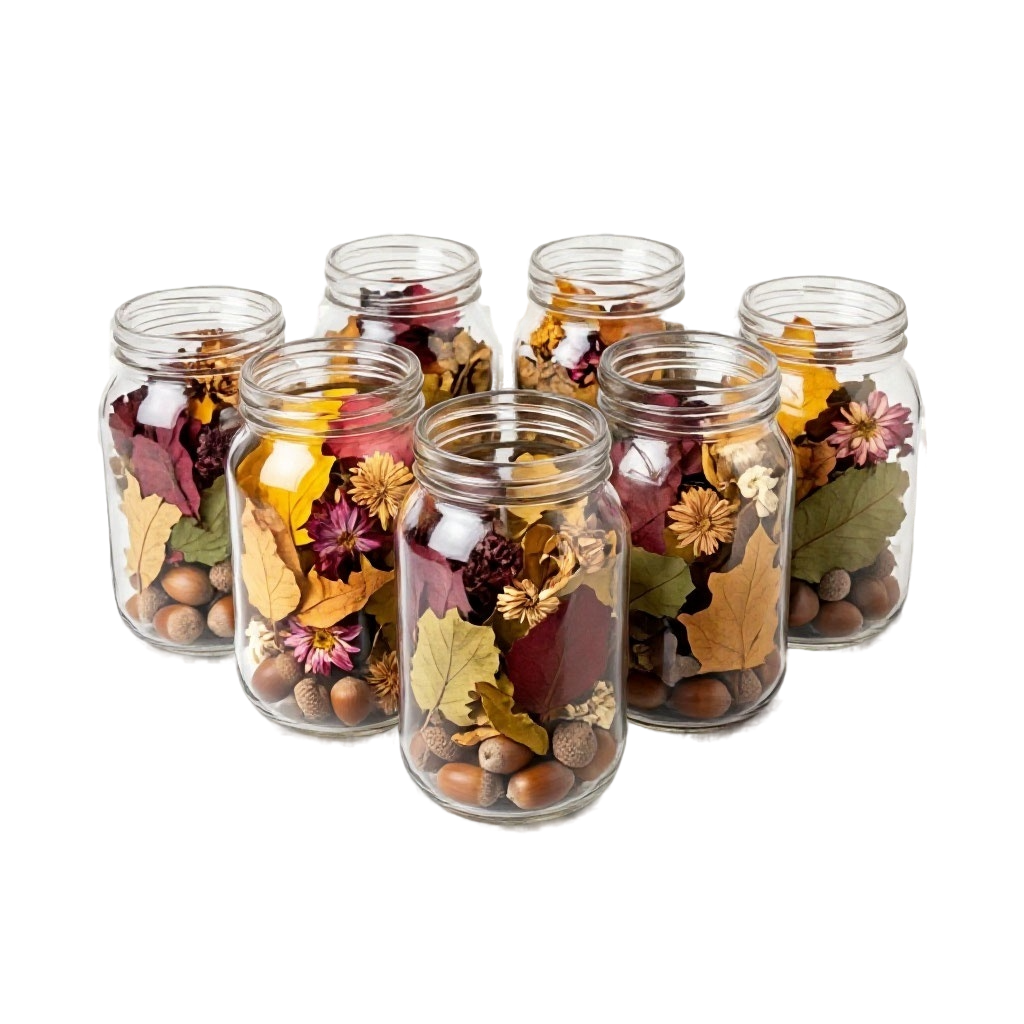
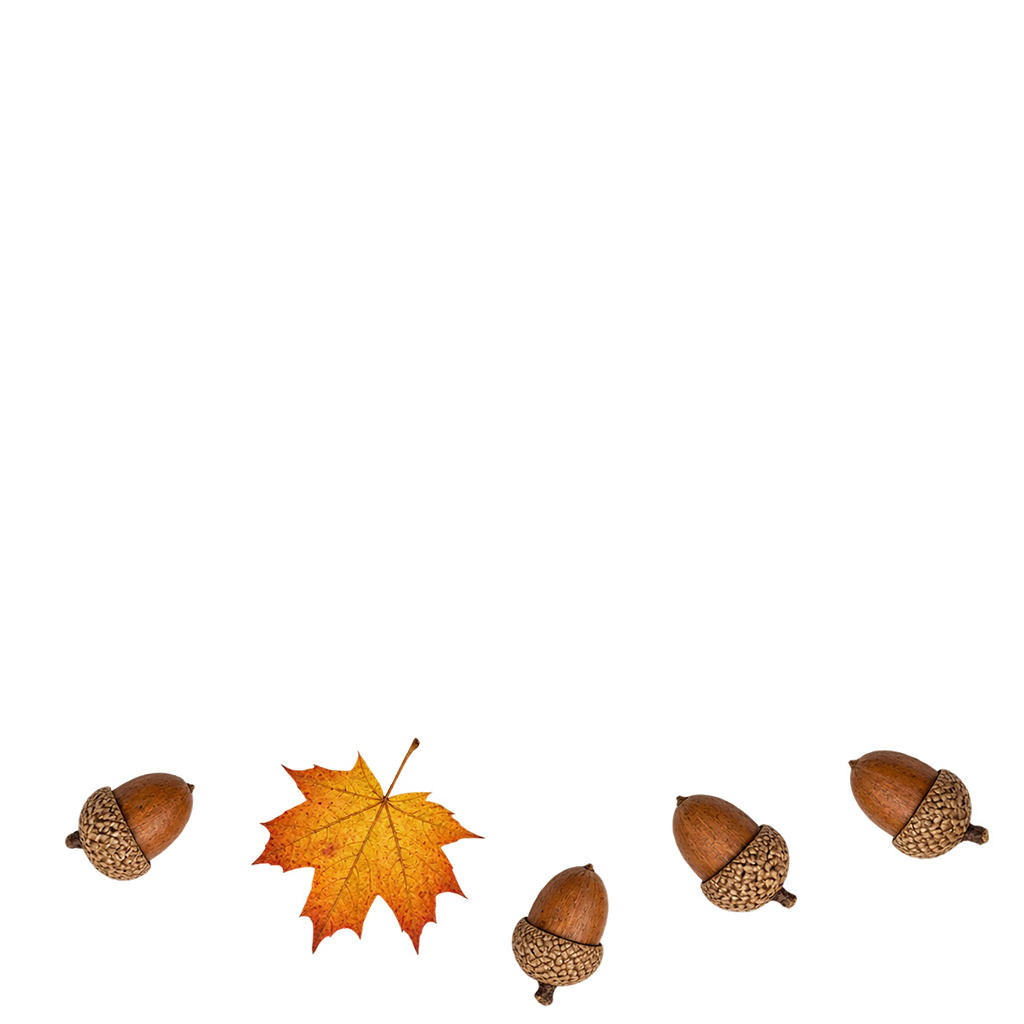
Stack multiple images, tune their depth and scale, and create a dimensional composition. Transparent foreground images work especially well when you want lower layers to remain visible.
Add text to the scene
Place text alongside image layers, position it horizontally and vertically, and set its depth so it moves as part of the composition.
Widget settings
Add the JYP Images Effects widget in Elementor. Its controls are grouped into Effects and Layers. Parallax-specific controls appear when Parallax is selected.
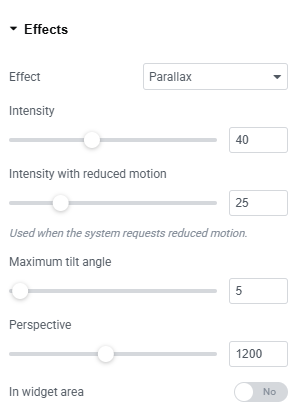
Effect
Choose No effect to show a static layered composition, or Parallax to make it tilt in response to pointer movement.
Intensity
Controls how strongly pointer position affects the widget's tilt. Increase it for more noticeable movement or lower it for a subtler effect.
Intensity with reduced motion
Sets the parallax strength for visitors whose device requests reduced motion. Set it to 0% to turn off pointer-driven movement for them.
Maximum tilt angle
Sets the maximum rotation used by the effect. Smaller values create a gentle tilt; larger values make the movement more pronounced.
Perspective
Adjusts the apparent depth of the 3D scene. A lower value gives a stronger perspective; a higher value makes it flatter and more restrained.
In widget area
When enabled, the effect responds only while the pointer is inside the widget. When disabled, pointer position elsewhere on the page can influence the widget.
Layer settings
Content type
Choose whether a layer contains an image or text. The selected type determines which layer-specific controls are shown.
Depth
Adjusts the layer's position along the 3D depth axis. Layers at different depths move and scale differently, helping create separation between foreground and background.
Movement strength
Multiplies the depth-based movement of an individual layer. Use 0% to keep that layer from moving with the other layers, 100% for the normal amount, or a higher value for stronger movement.
Scale
Sets the layer's size. A value of 100% is the reference size; a value above 100% enlarges it. A little extra scale can help prevent gaps around moving image layers.
Additional image-layer controls
Alignment
Aligns the image layer to the left, center, or right.
Width
Sets the image width. Elementor provides responsive values and the available units, including percent, pixels, and viewport width.
Opacity
Controls image transparency from 0% (invisible) to 100% (fully opaque).
CSS Filters
Adjusts the image's visual appearance using Elementor's CSS filter controls.
Border and Border Radius
Adds and styles an image border, then rounds its corners independently as desired.
Box Shadow
Adds a shadow around the image layer.
Additional text-layer controls
Horizontal Position
Positions the text layer to the left, center, or right.
Vertical Position
Positions the text layer at the top, middle, or bottom.
Text Width
Sets the width of the text area within its layer.
Alignment
Aligns text left, center, right, or justified.
Typography and Text Color
Controls the text layer's typography and text color.
Background, Border, and Shadows
Styles the text layer with a background, border, text shadow, and box shadow.
Padding
Sets the inner spacing around the text using pixels, percent, em, or rem units.
Paragraph Spacing
Sets the space after paragraphs inside the text layer. Available units include pixels, em, and rem.
Link Colors
Sets separate colors for links in the text layer and their hover or focus state.
Usage examples
Parallax with image layers
- Add the widget to an Elementor page.
- Choose an image for the first, base layer.
- Add more image layers and arrange them from background to foreground.
- Adjust each layer's Depth, Movement strength, and Scale.
- Select Parallax and tune the effect settings.
- Preview the page and move the pointer to see the layers respond.
Parallax with images and text
- Add the widget and set an image as the base layer.
- Add image layers for the foreground elements.
- Add a layer, choose Text as its content type, and enter your text.
- Set the text layer's depth and horizontal and vertical position.
- Adjust its width, typography, color, background, border, and spacing.
- Select Parallax, tune the effect, and preview the composition.